 Drefly
How to Add a Lead Form to Your Screen Recordings | Drefly Record Tutorial
Turn viewers of your screen recordings into real leads. Ask for a lead form from any recording, get it reviewed by the Drefly team, choose when it asks and which details it collects, see what viewers see, and download every lead as a CSV.
Transkript
Here's how to add a lead form to a recording, step by step.
Open your recording's settings, and choose Set up lead form.
Tell us what you'll use the leads for, agree to keep them safe, and send the request.
The Drefly team reviews every request, usually the same day, and always within 24 hours.
When it's approved, the form goes live on your share link, and you get an email and a notification.
Choose when the form asks: when the video ends, before watching, or only from a button.
Pick the details you need, add a heading, and save.
Viewers see a friendly card from you, in the corner of the share page.
They fill in a short form, agree to share their details with you, and press Send.
Every new lead reaches you right away, by notification and email.
Your leads are kept here, ready to download as a CSV file.
That's it. Add a lead form to your next recording at record.drefly.pro.
More videos
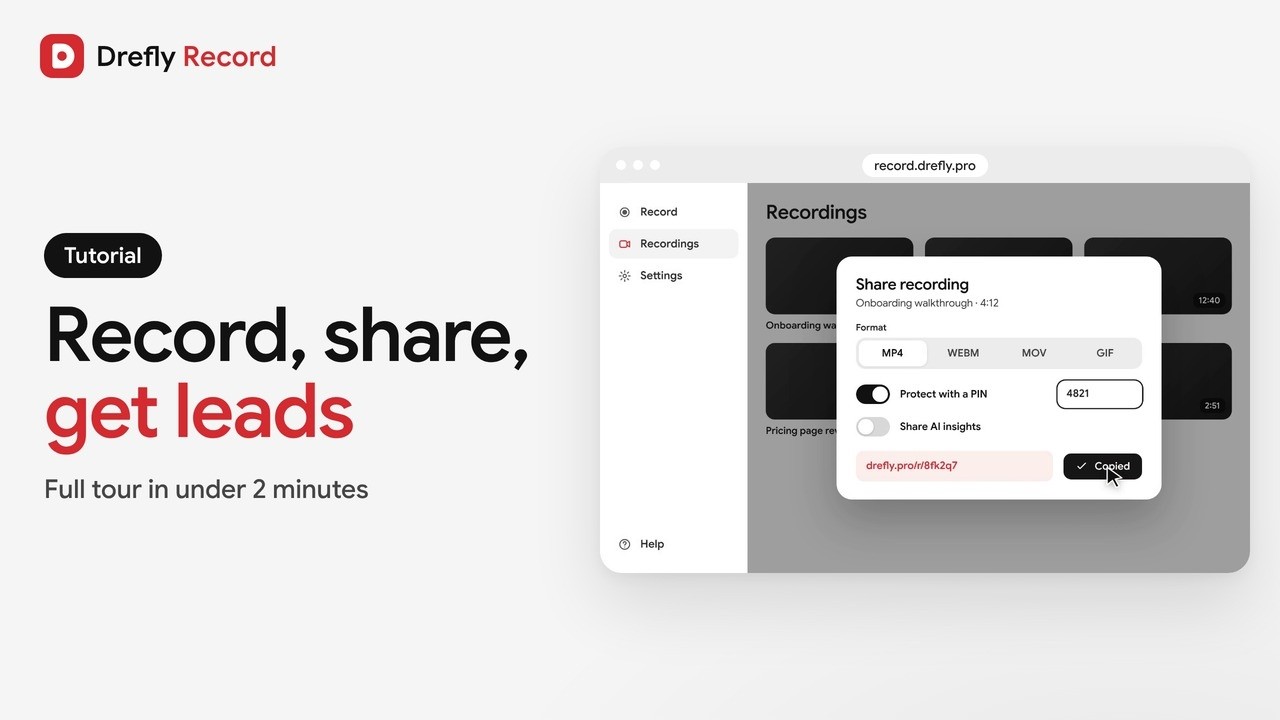 1:34
Drefly Record · Tutorial
Drefly Record Tutorial: Free Screen Recorder, Share Links, AI Notes and Lead Forms
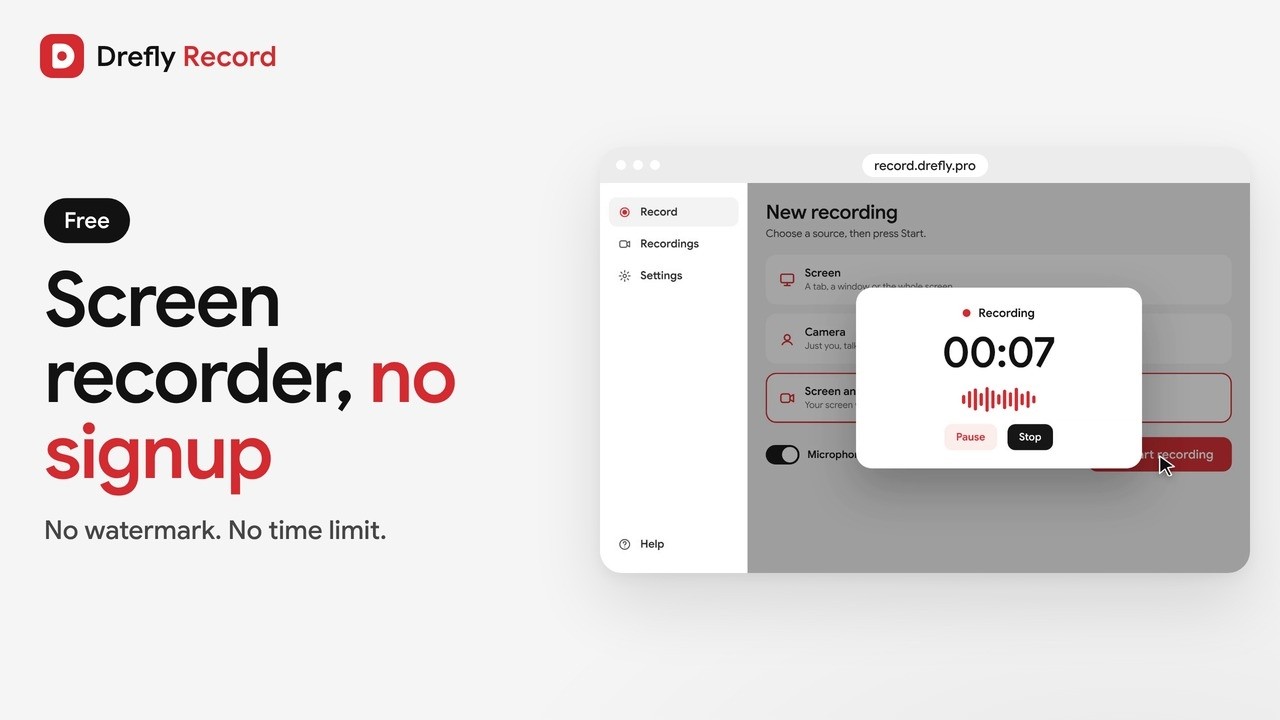 1:00
Drefly Record · Demo
Free Screen Recorder With No Signup and No Watermark | Drefly Record
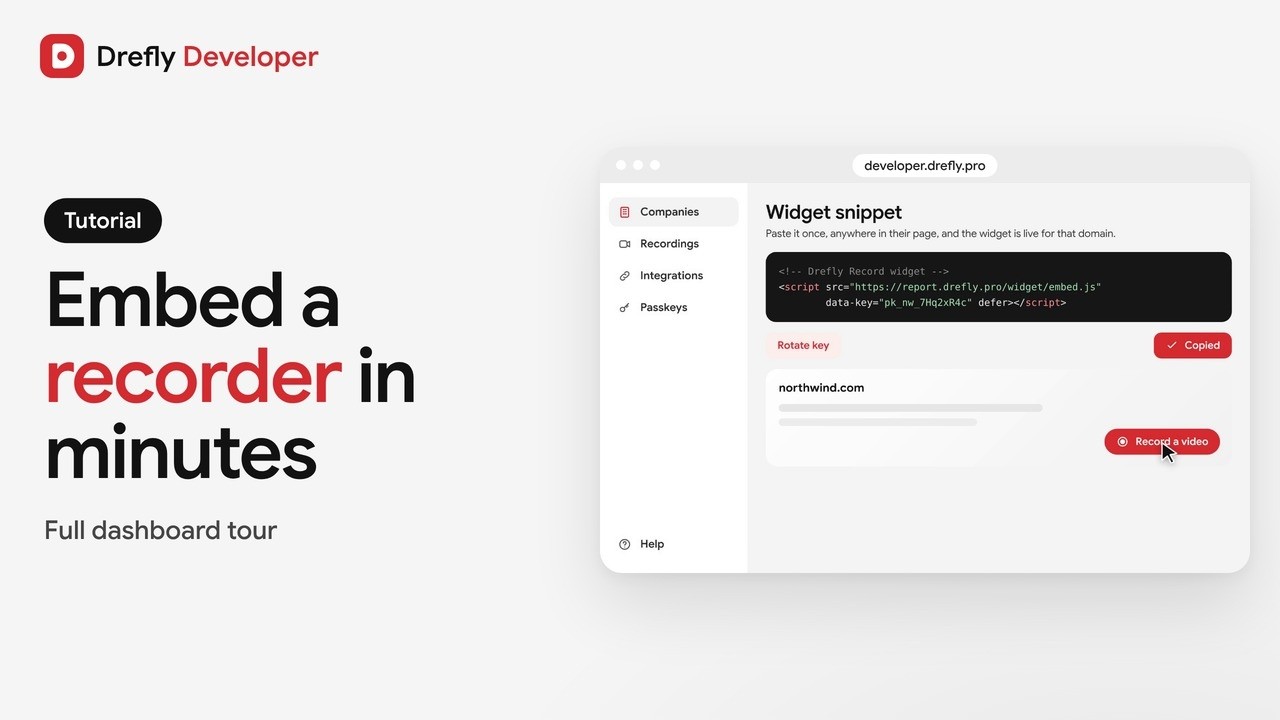 1:16
Drefly Developer · Tutorial
Drefly Developer Tutorial: Embed a Free Screen Recorder Widget on Any Website
 0:50
Drefly Developer · Demo
Get Bug Report Videos From Your Customers With One Script Tag | Drefly Developer
 1:15
Drefly Ads · Demo
Drefly Ads Demo: Advertise on Free Tool Pages People Use Every Day
 1:41
Drefly Ads · Tutorial
Drefly Ads Tutorial: Book, Track and Manage Your Ads
 1:28
Drefly for Slack · Tutorial
Drefly for Slack Tutorial: Commands, Shortcuts and Customer Recordings
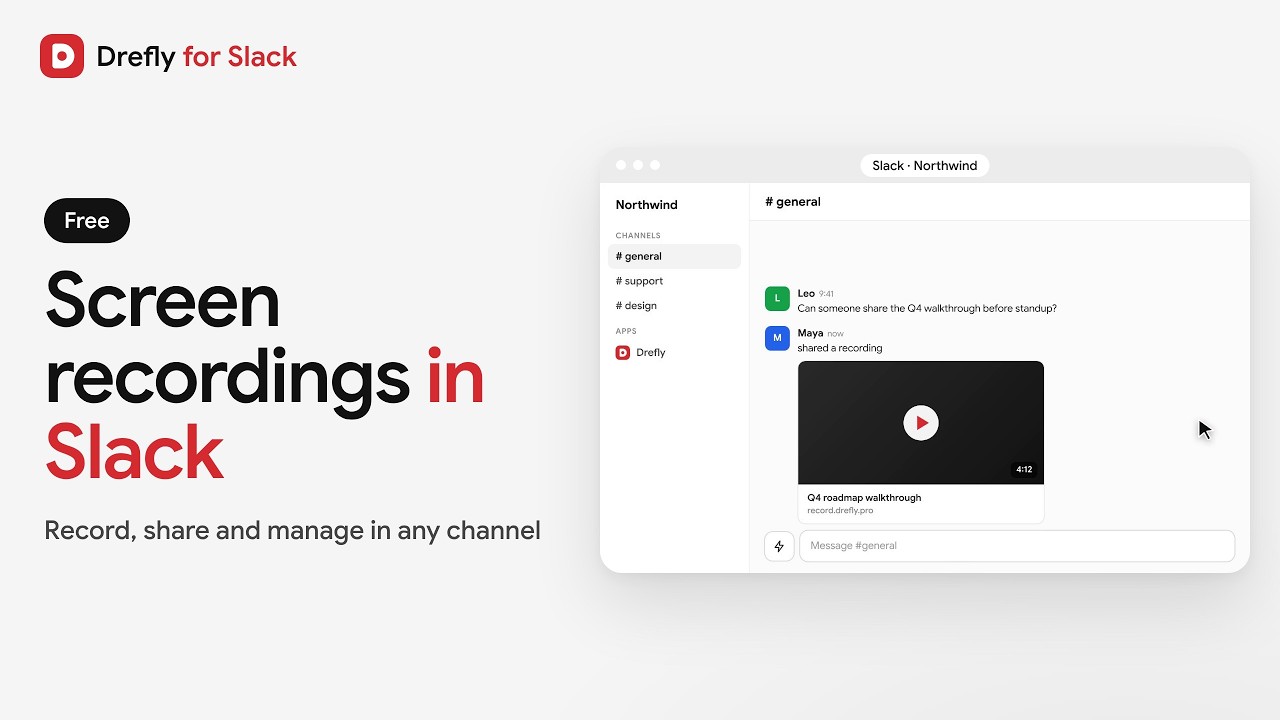 0:53
Drefly for Slack · Demo
Drefly for Slack Demo: Record, Share and Manage Screen Recordings in Slack